Product pages
A product page connects a clear task to visible evidence and a next step. Lead with the work the reader wants to do, then show the interface or output that supports the claim. Keep compatibility, pricing and licensing in their current authoritative destinations.
The examples use the shared theme and setup. Keep the
.fltheme-components wrapper around Basecoat and du- component markup.
Hero · daisyUI
This opening adapts the FontLab font-conversion page. Its call to action goes to the current product information; the example makes no price or compatibility claim.
Font conversion
Keep the intent of the typeface
Font conversion is about preserving intent: names, outlines, spacing, kerning, and family structure should survive the trip.
Explore conversion<div class="fltheme-components">
<section class="du-hero" style="background:var(--color-base-200);padding:2rem"><div class="du-hero-content" style="display:block"><p>Font conversion</p><h3>Keep the intent of the typeface</h3><p>Font conversion is about preserving intent: names, outlines, spacing, kerning, and family structure should survive the trip.</p><a class="du-btn du-btn-primary" href="https://www.fontlab.com/font-converter/">Explore conversion</a></div></section>
</div>Syntax and variants in daisyUI
Show the work beside the claim
Once you have named the task, show what the reader will inspect. A screenshot needs a caption that explains its role. Keep the product description as text so it remains readable when the image cannot load.
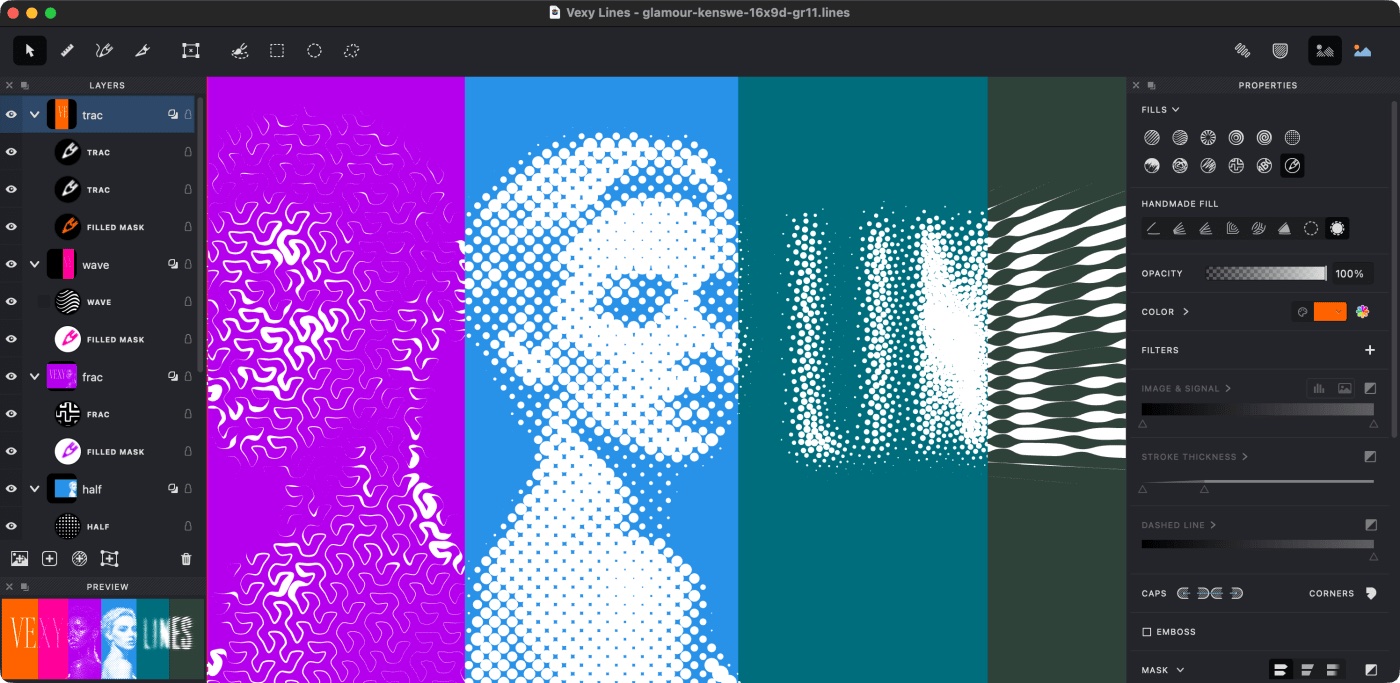
This feature adapts the Vexy Lines introduction. The picture shows the actual workspace; the text explains the relationship between source, fill and layer.
Direct the lines
Vexy Lines transforms photos and images into vector artwork. A fill interprets the source's tone and structure as lines, dots or other marks. You can combine fills with layers, groups and masks to give different parts of the image different treatments.
Start with one source and one fill. Inspect the result at the size where you intend to use it, then add another treatment where the composition needs one.
<div class="fl-feature">
<section>
<h3 id="direct-the-lines">Direct the lines<a class="headerlink" href="#direct-the-lines" title="Permanent link">¶</a></h3>
<p>Vexy Lines transforms photos and images into vector artwork. A fill interprets
the source's tone and structure as lines, dots or other marks. You can combine
fills with layers, groups and masks to give different parts of the image
different treatments.</p>
<p>Start with one source and one fill. Inspect the result at the size where you
intend to use it, then add another treatment where the composition needs one.</p>
<p><a class="md-button" href="https://help.vexy.art/lines/articles/fills-overview/">Read about fills</a></p>
</section>
<figure>
<p><a class="glightbox" data-desc-position="bottom" data-height="auto" data-type="image" data-width="auto" href="https://i.vexy.art/vl/landing/home-vexy-lines.jpg"><img alt="Vexy Lines workspace with a portrait and editing controls" loading="lazy" src="https://i.vexy.art/vl/landing/home-vexy-lines.jpg"></a></p>
<figcaption>A source image, its line treatment and the controls used to adjust it.</figcaption>
</figure>
</div><div class="fl-feature" markdown="1">
<section markdown="1">
### Direct the lines
Vexy Lines transforms photos and images into vector artwork. A fill interprets
the source's tone and structure as lines, dots or other marks. You can combine
fills with layers, groups and masks to give different parts of the image
different treatments.
Start with one source and one fill. Inspect the result at the size where you
intend to use it, then add another treatment where the composition needs one.
[Read about fills](https://help.vexy.art/lines/articles/fills-overview/){ .md-button }
</section>
<figure markdown="1">
{ loading="lazy" }
<figcaption>A source image, its line treatment and the controls used to adjust it.</figcaption>
</figure>
</div>The feature uses .fl-feature from field-guide.css. Below 800px, the text
comes before the image. Keep that source order when changing the desktop
proportions.
Explain the handoff
The FontLab conversion source describes the information that should survive conversion. The blog's TransType article explains why that information matters: a font contains decisions made during its design, not just a collection of outlines. This three-part composition gives those decisions room.
Keep the source
Retain the original files. Names, family structure, outlines, spacing and kerning give you something concrete to compare after conversion.
Convert the family
TransType is FontLab's dedicated tool for converting and organising font families. Check the current documentation for the formats and workflow you need before you begin.
Inspect the result
Open the converted fonts in the application that will use them. Compare the names and family grouping, then inspect the outlines, spacing and kerning. Further design work belongs in a font editor.
<div class="fl-pattern-grid">
<section>
<h3 id="keep-the-source">Keep the source<a class="headerlink" href="#keep-the-source" title="Permanent link">¶</a></h3>
<p>Retain the original files. Names, family structure, outlines, spacing and
kerning give you something concrete to compare after conversion.</p>
</section>
<section>
<h3 id="convert-the-family">Convert the family<a class="headerlink" href="#convert-the-family" title="Permanent link">¶</a></h3>
<p>TransType is FontLab's dedicated tool for converting and organising font
families. Check the current documentation for the formats and workflow you
need before you begin.</p>
<p><a href="https://www.fontlab.com/font-converter/transtype/">TransType product information</a></p>
</section>
<section>
<h3 id="inspect-the-result">Inspect the result<a class="headerlink" href="#inspect-the-result" title="Permanent link">¶</a></h3>
<p>Open the converted fonts in the application that will use them. Compare the
names and family grouping, then inspect the outlines, spacing and kerning.
Further design work belongs in a font editor.</p>
<p><a href="https://www.fontlab.com/font-editor/fontlab/">FontLab product information</a></p>
</section>
</div><div class="fl-pattern-grid" markdown="1">
<section markdown="1">
### Keep the source
Retain the original files. Names, family structure, outlines, spacing and
kerning give you something concrete to compare after conversion.
</section>
<section markdown="1">
### Convert the family
TransType is FontLab's dedicated tool for converting and organising font
families. Check the current documentation for the formats and workflow you
need before you begin.
[TransType product information](https://www.fontlab.com/font-converter/transtype/)
</section>
<section markdown="1">
### Inspect the result
Open the converted fonts in the application that will use them. Compare the
names and family grouping, then inspect the outlines, spacing and kerning.
Further design work belongs in a font editor.
[FontLab product information](https://www.fontlab.com/font-editor/fontlab/)
</section>
</div>The preservation criteria come from www.fontlab.com/src_docs/md/font-converter.md.
The distinction between conversion and further editing draws on the TransType
article in blog.fontlab.com. The inspection sequence is editorial guidance
for this example, not an automatic validation feature of either app.
Answer the remaining decision
Put purchase conditions at the destination that maintains them. Use a disclosure for supporting explanation, but keep the primary action visible.
Find the right route for your files
Conversion preserves an existing design in a usable format. Editing changes the design or its behaviour. If you need both, check each stage of the workflow against the source files and the destination application.
What should I check before choosing?
Identify the source formats, the target applications and the information that must survive. Check the product's current compatibility and licence terms. Keep an original copy of the files for comparison.
<section>
<h3 id="find-the-right-route-for-your-files">Find the right route for your files<a class="headerlink" href="#find-the-right-route-for-your-files" title="Permanent link">¶</a></h3>
<p>Conversion preserves an existing design in a usable format. Editing changes
the design or its behaviour. If you need both, check each stage of the workflow
against the source files and the destination application.</p>
<details>
<summary>What should I check before choosing?</summary>
<p>Identify the source formats, the target applications and the information that
must survive. Check the product's current compatibility and licence terms.
Keep an original copy of the files for comparison.</p>
</details>
<p><a class="md-button md-button--primary" href="https://www.fontlab.com/font-converter/">Explore font conversion</a></p>
</section><section markdown="1">
### Find the right route for your files
Conversion preserves an existing design in a usable format. Editing changes
the design or its behaviour. If you need both, check each stage of the workflow
against the source files and the destination application.
<details markdown="1">
<summary>What should I check before choosing?</summary>
Identify the source formats, the target applications and the information that
must survive. Check the product's current compatibility and licence terms.
Keep an original copy of the files for comparison.
</details>
[Explore font conversion](https://www.fontlab.com/font-converter/){ .md-button .md-button--primary }
</section>The grid uses .fl-pattern-grid from field-guide.css. The final disclosure
uses native HTML and works without an application handler.
A quieter product opener
The editorial .fl-hero class provides a centred opener. Pair it with the prefixed daisyUI hero inside a component area, and give the link a real destination.
This pattern uses the shared FontLab editorial styles described in Theme and setup.
Keep the intent of the typeface
Names, outlines, spacing, kerning and family structure belong with the design.
<section class="fltheme-components du-hero fl-hero">
<div class="du-hero-content">
<div>
<h3 id="keep-the-intent-of-the-typeface">Keep the intent of the typeface<a class="headerlink" href="#keep-the-intent-of-the-typeface" title="Permanent link">¶</a></h3>
<p>Names, outlines, spacing, kerning and family structure belong with the design.</p>
<p><a class="du-btn du-btn-primary" href="https://www.fontlab.com/font-converter/">Explore font conversion</a></p>
</div>
</div>
</section><section class="fltheme-components du-hero fl-hero" markdown="1">
<div class="du-hero-content" markdown="1">
<div markdown="1">
### Keep the intent of the typeface
Names, outlines, spacing, kerning and family structure belong with the design.
[Explore font conversion](https://www.fontlab.com/font-converter/){ .du-btn .du-btn-primary }
</div>
</div>
</section>Match display type to the document outline
The .fl-hero__title class changes presentation. The element still needs the heading level appropriate to its place in your document.
This pattern uses the shared FontLab editorial styles described in Theme and setup.
Preserve the design
{ .fl-hero__title }
Conversion changes the format while preserving the intent of the typeface.
<section class="fl-hero">
<h3 id="preserve-the-design">Preserve the design<a class="headerlink" href="#preserve-the-design" title="Permanent link">¶</a></h3>
<p>{ .fl-hero__title }</p>
<p>Conversion changes the format while preserving the intent of the typeface.</p>
</section><section class="fl-hero" markdown="1">
### Preserve the design
{ .fl-hero__title }
Conversion changes the format while preserving the intent of the typeface.
</section>